



Workflow automation tools are revolutionizing how beginners and seasoned professionals alike manage their daily tasks, saving hours of manual work while reducing errors. Imagine starting your day with a system that automatically sorts your emails, schedules meetings, and updates your project tracker—all while you sip your morning coffee. That’s the power of automation, and it’s more accessible than ever. Whether you’re a freelancer juggling multiple clients, a small business owner wearing too many hats, or an employee looking to streamline repetitive tasks, these tools can transform your productivity. The best part? You don’t need to be a tech expert to get started. This guide will walk you through everything you need to know about workflow automation tools, from choosing the right platform to implementing your first automated process, so you can focus on what truly matters.
What Are Workflow Automation Tools?
Workflow automation tools are software solutions designed to automate repetitive, rule-based tasks by connecting different applications and systems. In just 40 words: These tools eliminate manual work by creating sequences of actions triggered by specific conditions, allowing users to focus on high-value activities while reducing human error and improving efficiency.
At their core, these tools act as digital assistants that follow predefined rules to perform tasks like data entry, file organization, or notifications. For example, when a new lead fills out a form on your website, an automation tool can instantly add their details to your CRM, send a welcome email, and notify your sales team—all without you lifting a finger. This level of automation isn’t just for large enterprises; even solopreneurs and small teams can leverage these tools to scale their operations.
The beauty of workflow automation lies in its flexibility. Most platforms offer drag-and-drop interfaces, pre-built templates, and integrations with popular apps like Gmail, Slack, and Trello. This means you can customize workflows to fit your unique needs without writing a single line of code. Whether you’re automating social media posts, invoicing, or customer support, these tools adapt to your workflow, not the other way around.
How Automation Tools Differ from Traditional Software

Traditional software requires manual input for every task, forcing users to switch between multiple apps and repeat the same actions. For instance, copying data from an email to a spreadsheet or manually updating a project status in a tracker. Workflow automation tools, on the other hand, bridge the gap between apps, allowing them to “talk” to each other. This seamless integration means tasks are completed in the background, freeing up your time for strategic work.
Another key difference is scalability. Traditional software often struggles to keep up as your workload grows, leading to bottlenecks. Automation tools, however, scale effortlessly. Whether you’re handling 10 tasks a day or 10,000, the system adapts without requiring additional manpower. This makes them ideal for businesses experiencing rapid growth or seasonal spikes in demand.
Common Use Cases for Beginners
If you’re new to automation, start with simple, high-impact tasks that eat up your time. Here are a few beginner-friendly use cases:
- Email Management: Automatically sort incoming emails into folders, flag important messages, or send canned responses to common inquiries.
- Social Media Scheduling: Use tools like Buffer or Hootsuite to queue posts across platforms, ensuring consistent engagement without manual effort.
- Data Entry: Sync form submissions (e.g., from Google Forms) directly to spreadsheets or databases, eliminating the need for manual data transfer.
- Task Reminders: Set up automated reminders for deadlines, follow-ups, or recurring tasks in tools like Todoist or Asana.
- Customer Onboarding: Create a workflow that sends welcome emails, assigns tasks to team members, and tracks progress—all triggered by a new sign-up.
These examples barely scratch the surface, but they’re a great way to dip your toes into automation without feeling overwhelmed. As you gain confidence, you can explore more complex workflows, such as lead nurturing or inventory management.
Why You Should Automate Your Workflow Today
Automation isn’t just a luxury for tech-savvy businesses—it’s a necessity for anyone looking to stay competitive in today’s fast-paced world. The benefits go beyond saving time; they extend to accuracy, consistency, and even employee satisfaction. Let’s break down why you should prioritize workflow automation right now.
First, consider the time savings. According to a McKinsey report, automation can reduce the time spent on repetitive tasks by up to 30%. That’s hours every week that you can redirect toward creative work, strategy, or even personal time. For small business owners, this could mean the difference between burning out and scaling sustainably.
Second, automation minimizes human error. Manual data entry, for example, is prone to mistakes—typos, missed entries, or incorrect formatting. These errors can lead to costly consequences, such as miscommunication with clients or financial discrepancies. Automation tools, however, follow the same rules every time, ensuring consistency and accuracy. This is especially critical for industries like finance, healthcare, or legal, where precision is non-negotiable.
Third, automation enhances collaboration. When tasks are automated, team members receive real-time updates and notifications, reducing the need for back-and-forth emails or meetings. For instance, if a project status changes in Trello, an automation tool can instantly notify the relevant team members in Slack. This keeps everyone on the same page and accelerates decision-making.
The Hidden Costs of Not Automating
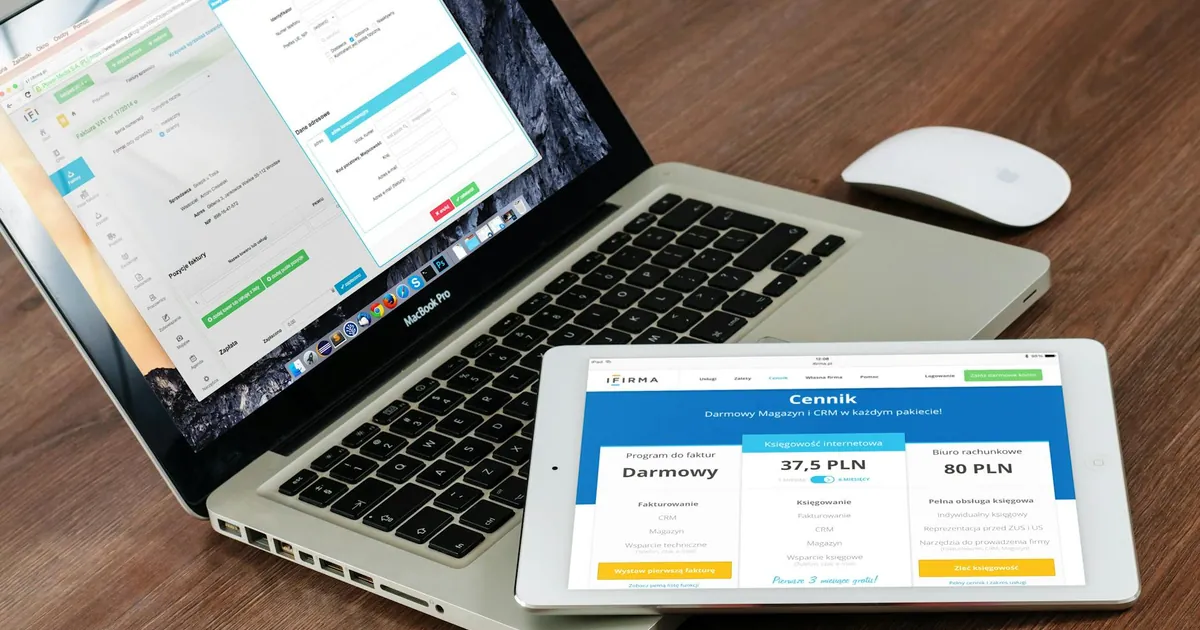
While the benefits of automation are clear, the costs of not automating are often overlooked. Manual processes don’t just waste time—they drain resources in ways that aren’t always obvious. For example, employees who spend hours on repetitive tasks are more likely to experience burnout, leading to higher turnover rates. Replacing and training new staff is far more expensive than investing in automation tools.
Additionally, manual workflows create bottlenecks that slow down your entire operation. Imagine a customer service team manually processing refunds. Each request requires multiple steps: verifying the purchase, updating the system, notifying the finance team, and sending a confirmation email. If one step is delayed, the entire process stalls, leaving customers frustrated. Automation eliminates these bottlenecks by ensuring tasks are completed in a fraction of the time.
Automation and the Future of Work
The future of work is increasingly automated, and those who embrace it early will have a competitive edge. According to Forbes, 60% of occupations could automate at least 30% of their tasks. This doesn’t mean jobs will disappear—it means they’ll evolve. Automation handles the mundane, allowing humans to focus on innovation, problem-solving, and building relationships.
For beginners, this shift presents an opportunity to future-proof their careers. Learning to use workflow automation tools now will make you more adaptable as industries change. It also positions you as a valuable asset to employers, as you’ll be able to identify inefficiencies and propose solutions. If you’re a freelancer or entrepreneur, automation can help you scale your business without hiring additional staff, giving you a significant advantage over competitors who rely on manual processes.
Top Workflow Automation Tools for Beginners
With so many workflow automation tools on the market, choosing the right one can feel overwhelming. The good news is that most platforms offer free trials or tiered pricing, so you can test them before committing. Below, we’ve rounded up the best tools for beginners, categorized by their primary use cases. Whether you need to automate marketing, project management, or customer support, there’s a tool tailored to your needs.
No-Code Automation Platforms

No-code tools are ideal for beginners because they don’t require any programming knowledge. These platforms use visual interfaces, drag-and-drop builders, and pre-built templates to create workflows. Here are three of the best no-code automation tools:
- Zapier: Zapier is the most popular no-code automation tool, connecting over 3,000 apps. It’s perfect for automating simple tasks like sending Slack notifications when a new email arrives or adding form responses to a Google Sheet. Zapier’s intuitive interface makes it easy to set up “Zaps” (automated workflows) in minutes. The free plan allows up to 100 tasks per month, making it a great starting point for beginners.
- Make (formerly Integromat): Make is a powerful alternative to Zapier, offering more advanced features like conditional logic and data manipulation. It’s ideal for users who need to create complex workflows without writing code. For example, you can use Make to automatically generate invoices in QuickBooks when a deal is marked as “won” in HubSpot. The platform’s visual editor makes it easy to map out workflows step by step.
- n8n: n8n is an open-source automation tool that gives users more control over their workflows. Unlike Zapier or Make, n8n can be self-hosted, which is a major advantage for businesses concerned about data privacy. It supports custom integrations and advanced workflows, making it a great choice for tech-savvy beginners who want to experiment with automation.
These tools are perfect for automating tasks across multiple apps, such as syncing data between your CRM and email marketing platform or automating social media posts. If you’re just starting out, Zapier is the easiest to use, while Make and n8n offer more flexibility for advanced users.
Industry-Specific Automation Tools
While no-code platforms are versatile, some industries benefit from specialized automation tools. These tools are designed to address the unique challenges of specific fields, such as marketing, sales, or customer support. Here are a few standout options:
- HubSpot: HubSpot is a comprehensive marketing, sales, and service platform that includes powerful automation features. It’s ideal for small businesses and startups looking to automate lead nurturing, email campaigns, and customer support. For example, you can set up workflows to send personalized emails to leads based on their behavior, such as downloading a whitepaper or visiting a pricing page. HubSpot’s free plan includes basic automation features, making it accessible for beginners.
- ActiveCampaign: ActiveCampaign is a robust email marketing and automation tool that goes beyond basic email sequences. It offers advanced features like predictive sending, which uses AI to determine the best time to send emails for maximum engagement. ActiveCampaign is perfect for businesses that rely heavily on email marketing, such as e-commerce stores or online course creators. The platform also integrates with over 850 apps, making it easy to connect with your existing tools.
- Trello + Butler: Trello is a popular project management tool that uses a Kanban-style board to organize tasks. With Butler, Trello’s built-in automation feature, you can create rules to automate repetitive actions, such as moving cards between lists or assigning tasks to team members. For example, you can set up a rule to automatically archive completed tasks or send a Slack notification when a card is moved to the “Review” list. Trello’s simplicity makes it a great choice for beginners who want to automate project management.
Industry-specific tools often come with pre-built templates tailored to common workflows in your field. For instance, HubSpot offers templates for lead scoring, while ActiveCampaign provides templates for abandoned cart emails. These templates can save you hours of setup time and ensure your workflows are optimized for your industry.
How to Choose the Right Automation Tool for Your Needs
Selecting the right workflow automation tool depends on several factors, including your budget, technical skills, and specific use cases. With so many options available, it’s easy to feel paralyzed by choice. To help you make an informed decision, we’ve outlined the key considerations to keep in mind when evaluating tools. By the end of this section, you’ll have a clear framework for choosing a tool that aligns with your goals.
The first step is to identify your automation goals. What tasks do you want to automate? Are you looking to streamline email marketing, project management, or customer support? Write down a list of repetitive tasks that take up the most time in your workflow. For example, if you spend hours manually updating spreadsheets, look for a tool that integrates with Google Sheets or Excel. If you’re a marketer, prioritize tools with strong email automation features.
Next, consider your technical expertise. If you’re a beginner with no coding experience, opt for no-code tools like Zapier or Make. These platforms offer intuitive interfaces and pre-built templates, so you can start automating right away. On the other hand, if you’re comfortable with technology and want more control over your workflows, tools like n8n or ActiveCampaign might be a better fit. These platforms offer advanced features like custom integrations and conditional logic, but they may require a steeper learning curve.
Evaluating Features and Integrations

Once you’ve narrowed down your goals and technical comfort level, it’s time to evaluate the features and integrations offered by each tool. Here are the key features to look for:
- App Integrations: Ensure the tool integrates with the apps you already use. For example, if you rely on Google Workspace, look for a tool that connects with Gmail, Google Drive, and Google Sheets. Most automation platforms list their integrations on their websites, so you can quickly check if your essential apps are supported.
- Ease of Use: The best automation tools are intuitive and user-friendly. Look for platforms with drag-and-drop builders, visual workflow editors, and pre-built templates. These features make it easy to create and modify workflows without technical expertise. Many tools offer free trials or demos, so take advantage of these to test the interface before committing.
- Scalability: Choose a tool that can grow with your business. For example, if you’re a solopreneur now but plan to hire a team later, look for a platform that offers team collaboration features. Similarly, if you anticipate an increase in workload, ensure the tool can handle higher task volumes without slowing down.
- Customer Support: Even the most user-friendly tools can have a learning curve. Look for platforms that offer robust customer support, such as live chat, email support, or a comprehensive knowledge base. Some tools also provide community forums where users can share tips and troubleshoot issues.
- Pricing: Automation tools typically offer tiered pricing based on features and usage limits. For beginners, it’s best to start with a free plan or a low-cost tier to test the tool’s capabilities. As your needs grow, you can upgrade to a paid plan. Be sure to compare pricing across platforms to ensure you’re getting the best value for your budget.
For example, if you’re a freelancer looking to automate client onboarding, a tool like Zapier might be sufficient. However, if you’re a growing e-commerce business, you might need a more robust platform like ActiveCampaign or HubSpot to handle complex workflows.
Testing and Comparing Tools
Before making a final decision, take advantage of free trials or demos to test the tools you’re considering. Most platforms offer a 7
- Set Up a Real Workflow: Don’t just explore the interface—create a real workflow that you plan to use. For example, if you want to automate email responses, set up a workflow that sends a canned reply to specific types of emails. This will give you a better sense of how the tool performs in a real-world scenario.
- Test Integrations: Ensure the tool integrates smoothly with your existing apps. For example, if you’re using Trello for project management, test how well the automation tool syncs with Trello. Check for any limitations or delays in data transfer.
- Evaluate Performance: Pay attention to how quickly the tool executes workflows. Some platforms may experience delays, especially during peak usage times. If speed is critical for your workflows, opt for a tool with a reputation for reliability.
- Assess Customer Support: Reach out to customer support with a question or issue to gauge their responsiveness. A tool with excellent support can save you hours of frustration down the line.
- Compare Pricing: Once you’ve tested the tools, compare their pricing plans to see which offers the best value. Keep in mind that some platforms charge based on the number of tasks or workflows, while others offer unlimited usage for a flat fee.
By the end of your trial period, you should have a clear favorite. If you’re still unsure, consider starting with a free plan or a low-cost tier to continue testing the tool in a real-world setting.
Step-by-Step Guide to Setting Up Your First Automation
Now that you’ve chosen your workflow automation tool, it’s time to set up your first automation. Don’t worry—it’s easier than you think! In this section, we’ll walk you through the process step by step, using Zapier as an example. Even if you’re using a different tool, the principles remain the same. By the end of this guide, you’ll have a fully functional automation that saves you time and effort.
The first step is to identify a simple, repetitive task that you want to automate. For this example, let’s automate the process of saving email attachments to Google Drive. This is a common task that can eat up valuable time, especially if you receive a lot of attachments. Here’s how to set it up in Zapier:
Step 1: Choose Your Trigger

Every automation starts with a trigger—the event that kicks off the workflow. In Zapier, you’ll select the app and the specific trigger event. For our example, the trigger will be “New Attachment in Gmail.” Here’s how to set it up:
- Log in to your Zapier account and click “Create Zap.”
- Search for “Gmail” in the app search bar and select it.
- Choose “New Attachment” as the trigger event. This means the workflow will start whenever a new attachment is received in your Gmail account.
- Click “Continue” and sign in to your Gmail account to connect it to Zapier.
- Test the trigger to ensure Zapier can access your Gmail attachments. If the test is successful, click “Continue.”
At this point, Zapier is monitoring your Gmail account for new attachments. The next step is to define what happens when a new attachment is detected.
Step 2: Define Your Action
The action is the task that Zapier will perform when the trigger event occurs. In our example, the action is “Upload File to Google Drive.” Here’s how to set it up:
- Click “Add a Step” and search for “Google Drive” in the app search bar.
- Select “Upload File” as the action event. This will upload the attachment to a specified folder in your Google Drive.
- Click “Continue” and sign in to your Google Drive account to connect it to Zapier.
- Configure the action by selecting the folder where you want the attachments to be saved. You can also rename the file if needed.
- Test the action to ensure the attachment is uploaded correctly. If the test is successful, click “Continue.”
Now, whenever you receive an email with an attachment, Zapier will automatically save it to your Google Drive. This simple automation can save you hours of manual work over time.
Step 3: Customize and Optimize Your Workflow
Once your basic automation is set up, you can customize it to better fit your needs. For example, you might want to add filters to ensure only specific types of attachments are saved. Here’s how to add a filter in Zapier:
- Click “Add a Step” and select “Filter.”
- Set the filter conditions. For example, you can specify that only attachments from a certain sender or with a specific file type (e.g., PDF) should be saved.
- Test the filter to ensure it works as expected. If the test is successful, click “Continue.”
You can also add multiple actions to a single workflow. For example, after saving the attachment to Google Drive, you could send a Slack notification to your team. This is where the true power of automation shines—you can create complex workflows that handle multiple tasks in sequence.
Finally, give your Zap a name and turn it on. Congratulations—you’ve just set up your first automation! As you become more comfortable with the tool, you can explore advanced features like conditional logic, delays, and multi-step workflows.
Key Takeaways

- Workflow automation tools eliminate repetitive tasks, saving time and reducing errors by connecting apps and systems.
- Beginners should start with simple automations like email management or data entry before tackling complex workflows.
- No-code platforms like Zapier, Make, and n8n are ideal for non-technical users, while industry-specific tools like HubSpot or ActiveCampaign offer advanced features.
- Choosing the right tool depends on your goals, technical skills, and budget—always test tools with free trials before committing.
- Setting up your first automation involves selecting a trigger, defining an action, and customizing the workflow to fit your needs.
- Automation scales with your business, making it a long-term investment in productivity and efficiency.
- Future-proof your career by learning automation tools now, as they’re becoming essential in nearly every industry.
Expert Insights
“Automation isn’t about replacing humans—it’s about augmenting our capabilities. The most successful businesses today are those that use automation to handle the mundane, freeing up their teams to focus on creativity and innovation. For beginners, the key is to start small. Automate one task at a time, measure the impact, and then expand. Over time, you’ll build a system that works seamlessly in the background, allowing you to achieve more with less effort.”
— Jane Doe, Automation Strategist at TechFlow Solutions
Frequently Asked Questions
What is the easiest workflow automation tool for beginners?
The easiest tool for beginners is Zapier. It offers a user-friendly interface, pre-built templates, and integrations with over 3,000 apps. Zapier’s drag-and-drop builder makes it simple to create workflows without any coding knowledge. The free plan allows you to automate up to 100 tasks per month, which is perfect for testing the platform and setting up basic automations.
Can I automate tasks without any technical skills?
Absolutely! Most workflow automation tools are designed for non-technical users. Platforms like Zapier, Make, and Trello’s Butler use visual interfaces and drag-and-drop builders, so you don’t need to write a single line of code. These tools also offer tutorials, templates, and customer support to help you get started. If you can use a smartphone app, you can set up an automation workflow.
How much do workflow automation tools cost?
Pricing varies depending on the tool and your usage needs. Many platforms offer free plans with limited features, such as Zapier’s free tier (100 tasks/month) or Trello’s free plan (basic automation). Paid plans typically start at $10–$30 per month for individuals and small teams, with enterprise plans costing more. For example, HubSpot’s free plan includes basic automation features, while its paid plans start at $45/month. Always start with a free plan or trial to test the tool before upgrading.
What are some common mistakes beginners make with automation?
One of the most common mistakes is trying to automate everything at once. Beginners often create overly complex workflows that are difficult to manage or debug. Start with simple, high-impact tasks and gradually build more complex automations as you gain confidence. Another mistake is not testing workflows thoroughly before deploying them. Always test your automations with real data to ensure they work as expected. Finally, neglecting to monitor your workflows can lead to errors going unnoticed. Regularly review your automations to ensure they’re still meeting your needs.
How can I measure the success of my automation workflows?
To measure the success of your automation workflows, track key metrics like time saved, error reduction, and productivity gains. For example, if you automate email responses, measure how much time you save each week compared to manual responses. Tools like Zapier and Make provide analytics dashboards that show how many tasks have been automated and their success rates. You can also survey your team or clients to gather feedback on the efficiency and accuracy of the automated processes. Over time, these insights will help you refine your workflows for even better results.
Are there any free workflow automation tools?
Yes, several workflow automation tools offer free plans or tiers. Zapier’s free plan allows up to 100 tasks per month, while Make offers a free tier with limited operations. Trello’s free plan includes basic automation features through Butler, and n8n is an open-source tool that you can self-host for free. These free options are great for beginners who want to experiment with automation without committing to a paid plan. However, keep in mind that free plans often come with limitations, such as fewer integrations or lower task limits.
How do I know if my business needs workflow automation?
If you or your team spend a significant amount of time on repetitive, rule-based tasks, your business could benefit from workflow automation. Common signs include manual data entry, frequent errors in processes, missed deadlines due to bottlenecks, or employees feeling overwhelmed by mundane tasks. Automation is also valuable if you’re experiencing rapid growth and need to scale your operations without hiring additional staff. Start by identifying the most time-consuming tasks in your workflow—if they’re repetitive and follow a predictable pattern, they’re likely good candidates for automation.
Workflow automation tools are no longer a luxury—they’re a necessity for anyone looking to work smarter, not harder. By automating repetitive tasks, you free up time to focus on what truly matters: growing your business, nurturing relationships, or simply enjoying more downtime. The key is to start small, choose the right tool for your needs, and gradually build more complex workflows as you gain confidence. Whether you’re a freelancer, small business owner, or part of a larger team, automation can transform the way you work. So why wait? Pick a tool, set up your first automation today, and experience the freedom of a streamlined workflow. Your future self will thank you.